
Table of Contents
This guide walks you through setting up a members-only live stream on your WordPress site using WpStream for video streaming and WooCommerce Subscriptions for recurring payments.
Plugins: #
- WpStream
- WooCommerce
- WooCommerce Subscriptions
Install and Activate Required Plugins #
- Go to Plugins → Add New in your WordPress dashboard.
- Install and activate:
- WpStream
- WooCommerce
- Purchase and install WooCommerce Subscriptions.
Create a WpStream Channel and Link to the Subscription #
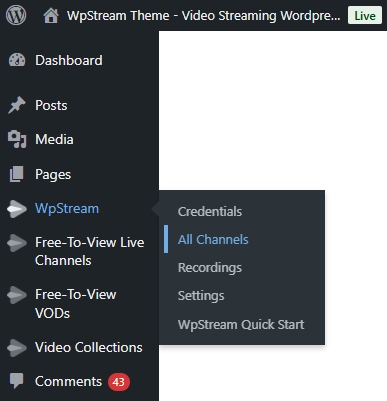
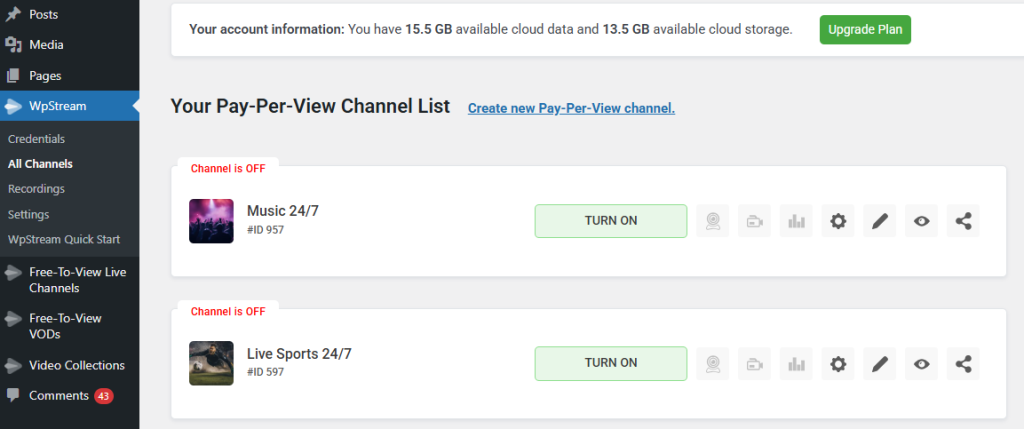
- Go to WpStream → All Channels → Create new Pay-Per-View Channel.
- Name the channel (e.g., “VIP Live Stream”).
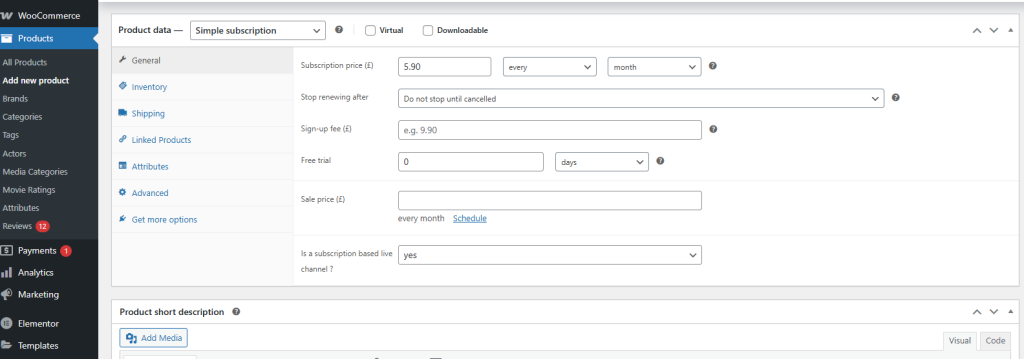
- In the Product Data section, click on ‘Simple Subscription’ from the drop down.
- Add your subscription details like Price, how often it should renew, etc.
- Publish the channel.
✅ Now only subscribers with an active subscription can access this live stream.
Start a Live Stream #
- TURN ON on the channel you created.
- Choose to go live via browser or an external encoder like OBS.
- Share the channel page URL with subscribers.
Note that you will need to test purchase this livestream to actually be able to watch, even as the admin. It will look exactly the same to you as to your non-customers.


